
Quick Start
This guide is for first-time users. The goal is to complete a workable setup and run the core workflow in minutes.
1. Open the Panel and Check Project Status
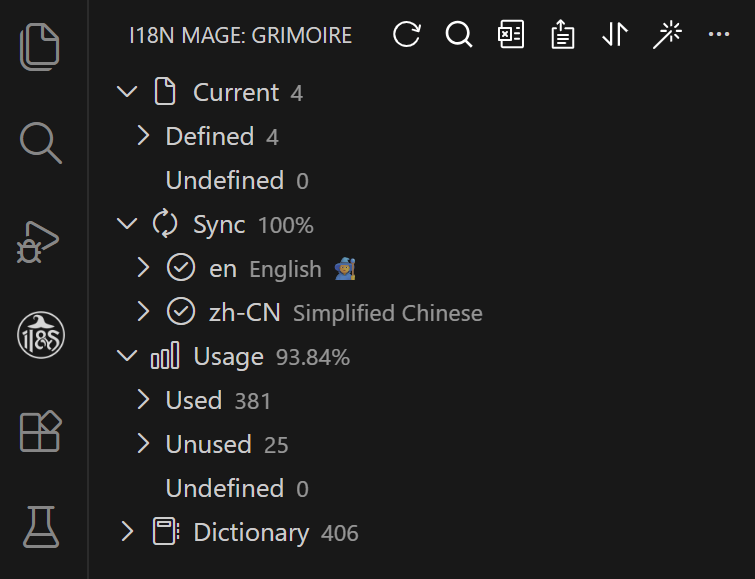
After installing, open the i18n Mage icon in the VS Code sidebar, then open the Grimoire panel. You can see:
- Sync information (language status, missing/empty stats)
- Usage information (used/unused/undefined)
- Entry tree and top actions (search, Excel, sort, fix)
2. Configure Language Directory and Project Directory
If language files are not detected automatically, configure:
i18n-mage.workspace.languagePath: language file directoryi18n-mage.workspace.projectPath: project root directory
Common language directories: locales/, i18n/, lang/.
3. Set Reference Language and Display Language
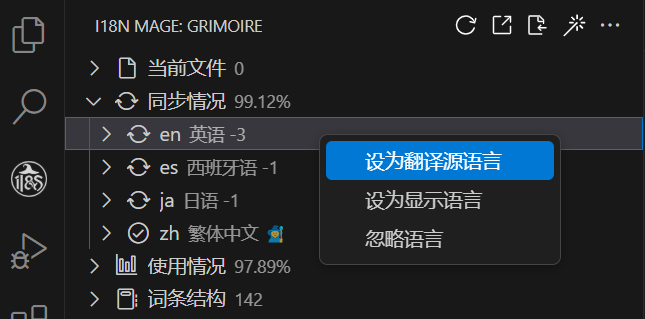
In the "Sync" section:
- Right-click a language to set it as reference language
- Right-click a language to set it as display language
It is recommended to set the reference language before using fix, fill, and rewrite operations.
4. Configure Translation Services (At Least One)
Go to Extensions -> i18n Mage -> Translation Services and configure your API keys.
Common settings:
i18n-mage.translationServices.translateApiPriorityi18n-mage.translationServices.deeplApiKeyi18n-mage.translationServices.googleApiKeyi18n-mage.translationServices.openaiApiKey
Optional regional providers:
i18n-mage.translationServices.deepseekApiKeyi18n-mage.translationServices.baiduAppId/baiduSecretKeyi18n-mage.translationServices.tencentSecretId/tencentSecretKeyi18n-mage.translationServices.youdaoAppId/youdaoAppKey
If you are behind a corporate proxy or restricted network:
i18n-mage.translationServices.proxy.enablei18n-mage.translationServices.proxy.hosti18n-mage.translationServices.proxy.porti18n-mage.translationServices.proxy.protocol
5. Run a Minimal Workflow
Recommended order:
Extract Hardcoded Texts(Ctrl+Alt+E/Cmd+Alt+E, optional)Check Usage(Ctrl+Alt+C/Cmd+Alt+C)Fix(Ctrl+Alt+F/Cmd+Alt+F)Search(Ctrl+Alt+S/Cmd+Alt+S)- (Optional)
Sort
6. Excel Collaboration Workflow
In the sidebar, click Excel to access four actions:
Export Excel: export all entriesImport Excel: import all entriesExport Version Diff: export incremental diff by git baselineImport Version Diff: write diff sheet back to project
Recommended process:
- Developer exports version diff (choose baseline commit)
- Translator updates texts in
ADD / MODIFYsheets - Developer imports version diff and confirms preview
- Run
Check Usageagain to verify results
7. Shortcut Reference
| Feature | Win/Linux | macOS |
|---|---|---|
| Check usage | Ctrl+Alt+C | Cmd+Alt+C |
| Extract hardcoded texts | Ctrl+Alt+E | Cmd+Alt+E |
| One-click fix | Ctrl+Alt+F | Cmd+Alt+F |
| Search entries | Ctrl+Alt+S | Cmd+Alt+S |
| Toggle translation hints | Ctrl+Alt+D | Cmd+Alt+D |
| Browse translations in current file | Ctrl+Alt+T | Cmd+Alt+T |